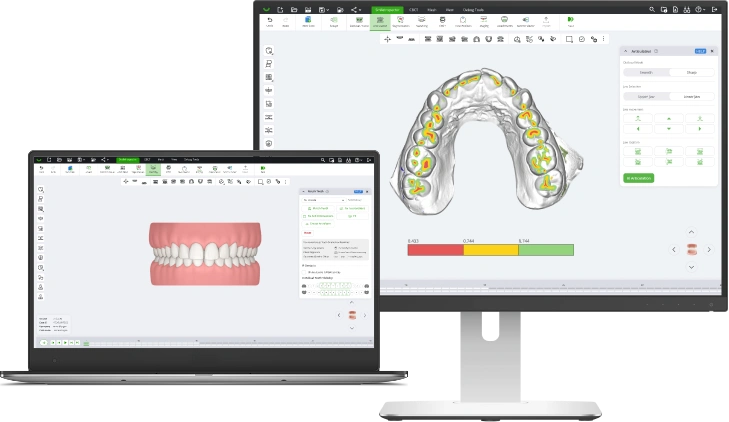
SmileInspector October 2026 Release
The October 2026 release places attachments automatically, resolves collisions in staging with one click, and lets the final position tools, AI included, work on a selected group of teeth.

This release takes the most repetitive steps out of a plan. Attachments are placed on both jaws in one click, collisions between neighboring teeth are cleared across the stages in one click without touching the final position, and the final position tools, AI Final Position included, now work on just the teeth you select.
New
Automatic attachment placement
Stop placing attachments tooth by tooth. Automatically Place Attachments puts an attachment on each tooth of both jaws whose planned movement calls for one, with attachments from the SmileInspector attachment library.
- Select an auto-placed attachment to see which rule placed it, and whether the plan still meets that rule after later changes
- One Undo takes the whole placement back
- Skip teeth that already have attachments, so your own placements stay
- Find it in Attachments, under Placement
Collision resolution in staging
No more stepping through the stages to hunt for teeth that run into each other. Resolve Collisions in the Staging dialog finds the contacts between neighboring teeth stage by stage and clears them, holding teeth back and adding stages where needed.
- Your final position is never changed, only how the teeth get there
- Works on the jaw on screen, one jaw at a time
- An Extra stages slider sets how many stages it may add
- Collisions that remain after that come with a suggestion of extra IPR, which you keep or cancel
- Fine-tuning lives in Settings, Clinical Parameters, Collision Resolve
Final position for a group of teeth
Work on part of the arch without disturbing the rest. Pick teeth on the Selected teeth chart, or use the All, Front, Left and Right presets, and the final position tools act on those teeth only.
- AI Final Position plans the selected teeth and keeps every other tooth where you set it
- Translate to Arch, Rotate to Arch and Arch Design move only the selection
- Expand arch and Shrink arch, in steps of 0.1, 0.25 and 0.5 mm. Smart mode, the default, shares the movement according to the room each tooth has within its clinical restrictions
- Reset to Initial Position resets only the selected teeth and keeps the stages of your plan
- A new, smoother arch form option in the arch editor and for the arch tools
Auto Prep goes further on orthodontic cases
On two-jaw orthodontic cases, one Auto Prep click now continues through AI articulation, matching and an AI Final Position proposal, so you start from a proposed final position to review and refine.
Lite interface
A simpler way to work, for new technicians and for doctors who plan their own cases. Choose Lite in Settings, Interface Mode, and each step of the workflow (Prep, Move, Stage, Finish) becomes one ribbon button that shows its own tools and hides the rest. Classic stays the default.
One active jaw for the whole application
Choose Upper, Lower or Both once, with the Active Jaw button or the J key, and Final Position, Staging, Segmentation, Articulation, Occlusal Facial Setup and Movement Colors all follow it. The active jaw is highlighted, so you always see which one you are working on.
Updates
Final Position
- A Simple tab with just the jaw, the main actions, the teeth to work on and the tools. Everything else is in Advanced
- Redistribute, contact distance, arch expansion, Reset and Fit within limits work on both jaws at once
- The AI Final Position button is now shown by default
- Translate and Rotate to Arch now keep the arch width you set
- Tooth Guides and Antagonist Section are also in the Diagnostics panel
Staging
- Applying a staging strategy now schedules planned IPR in the first stages, so it is done before the teeth need the space
- Redistribute and Arch Design take planned IPR into account
- Shift and the arrow keys jump to the initial and the final stage
Articulation
- The progress bar shows what is happening, and Cancel responds faster
- Undo fully reverts an articulation, and you are asked before leaving the jaws unarticulated
Retainers
- Auto Prep and aligner thickness control for retainers
- Tools and stages that do not apply to retainers are switched off
Attachments
- Redesigned Attachments dialog with an Advanced tab, and an updated default attachment library
Export
- The Export dialog is organized in six tabs: Simple, Fillers, Engraving, Trimline, Stages and Advanced
- Shift and rotate the fixture base for each jaw right in the Export dialog
- File names can include the content type, such as model, aligner or tooth
Table of movements
- Translations can be shown along the axes of the moved tooth, so one drag changes one value
Segmentation and Matching
- Redesigned Segmentation dialog, with a progress bar and Cancel
- When an AI segmentation cannot start, the message says why
- The gum base now fully covers the last molars after matching
CBCT
- AI CBCT roots keep their exact shape, with no smoothing applied
- Reset a single crown to its library root
- Lighter CBCT cases, with full bone detail kept near the teeth
Doctor Viewer and Patient Viewer
- Approving a setup is now recorded in the case history, as rejecting already was
- IPR values are shown when a case opens, with a delete button next to each IPR in edit mode
- Smoother rotation of CBCT cases with the bone heat map
- The Patient Viewer opens on the final stage, and explains why when a link cannot be opened
Interface
- A refreshed top panel, new sharper icons, rounded windows and more compact dialogs
- You no longer miss a message that appears while another one is open
- Cases open with your account’s color scheme
Fixes
Fixes across Auto Prep, CBCT, pontics, gingiva, trimline and export, improved gingiva for crowded and displaced teeth, and the web version no longer freezes when the network connection drops.
Questions or feedback? Contact us at support@smileinspector.io